
CSV import stuck, failed or low match
Every CSV import is listed under Settings → CSV imports with its status, progress and number of rows uploaded. Start there when an import looks stuck or the contacts it added don't match well.
Check the import's status
Go to Settings → CSV imports.
Find your file by name with the search box, or use the All statuses filter.
Click Refresh to load the latest status.
A Completed import shows a full progress bar and the rows processed, for example "102 / 102 rows". If an import stays on Pending with no progress after a refresh, message us in the in-app chat with the file name and date so we can check it.
The file won't upload
Too many rows. Each file can have up to 20,000 rows. Split bigger lists into several files.
Wrong import type. The columns need to match the type you picked under CSV Imports: Email Only (work emails), LinkedIn URLs (LinkedIn profile URLs) or Full Import (LinkedIn URL, job title, first name, last name, company name, company domain).
Not enough credits. Each new contact added costs 1 Audience credit. Check your balance in the credit pill at the top of the page.
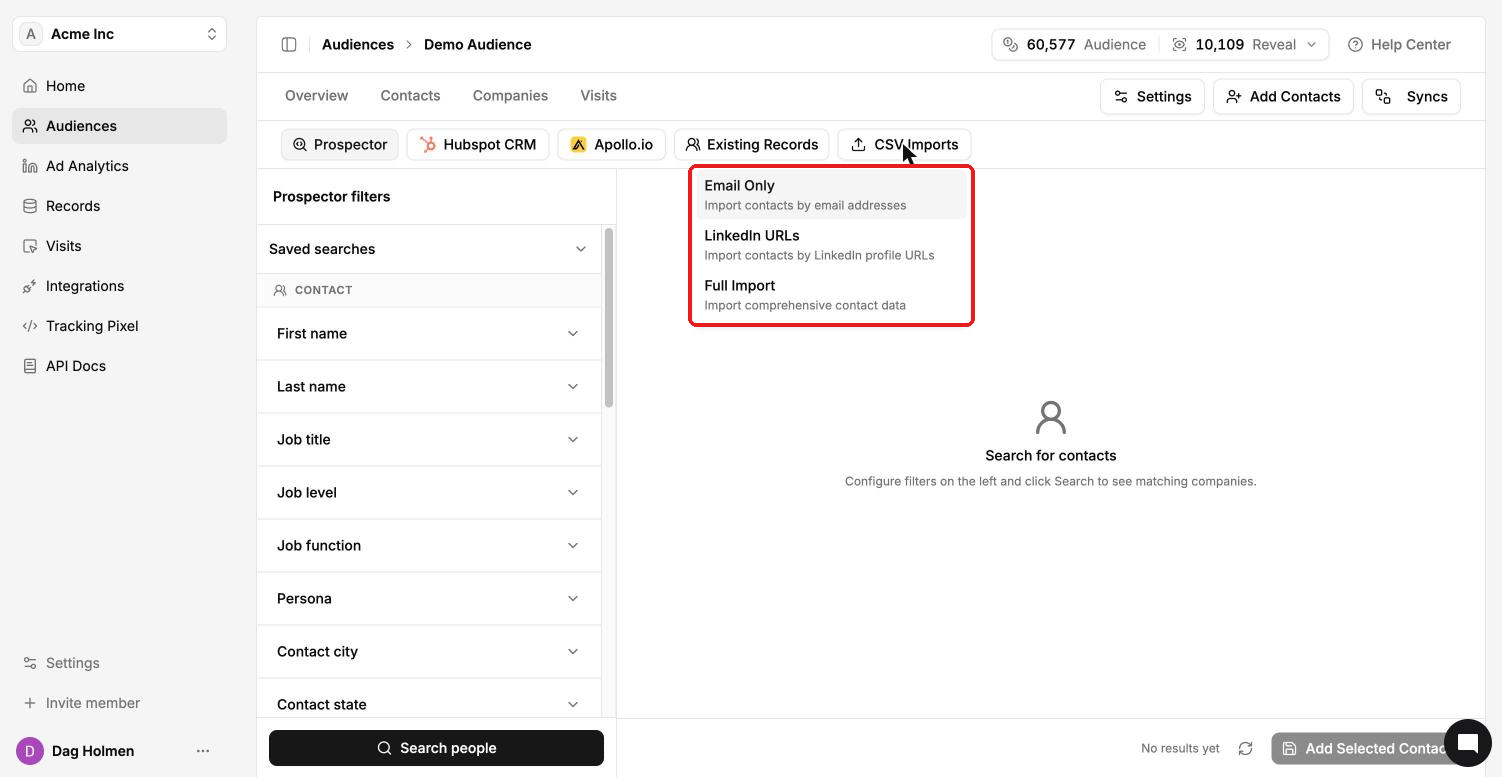
The import finished but matches are low
Open the audience's Overview tab and check Strength distribution. Contacts with 3 bars or more have plenty of advertising data. If most land at 0–2 bars, the ad platforms will struggle to match them.
Use LinkedIn URLs. They're the best identifier, and most users only need a LinkedIn URL import.
Switch to Full Import. If a LinkedIn-URL-only import matched badly, re-import the same people with Full Import. The extra columns give the system fallback data when a URL is missing or broken, which gives the best match rate.
Clean the file. Remove rows with blank or malformed URLs and emails, and check that LinkedIn URLs point to personal profiles.
Credits on re-imports and duplicates
You won't pay twice for the same person. If you upload a contact that already exists in your account, you're charged 1 credit on upload and refunded straight away when enrichment recognises the existing contact. It shows as a "Credit refund" line under Settings → Credit Usage.
Contacts we find no advertising data for are refunded too. You can see these on the audience's Overview → Refunds tab.