
Ways to add contacts to an audience
You can fill an audience in three ways: search for people, import a CSV, or set up a Dynamic Sync that keeps adding people on its own. Open any audience and click Add Contacts to see every source.
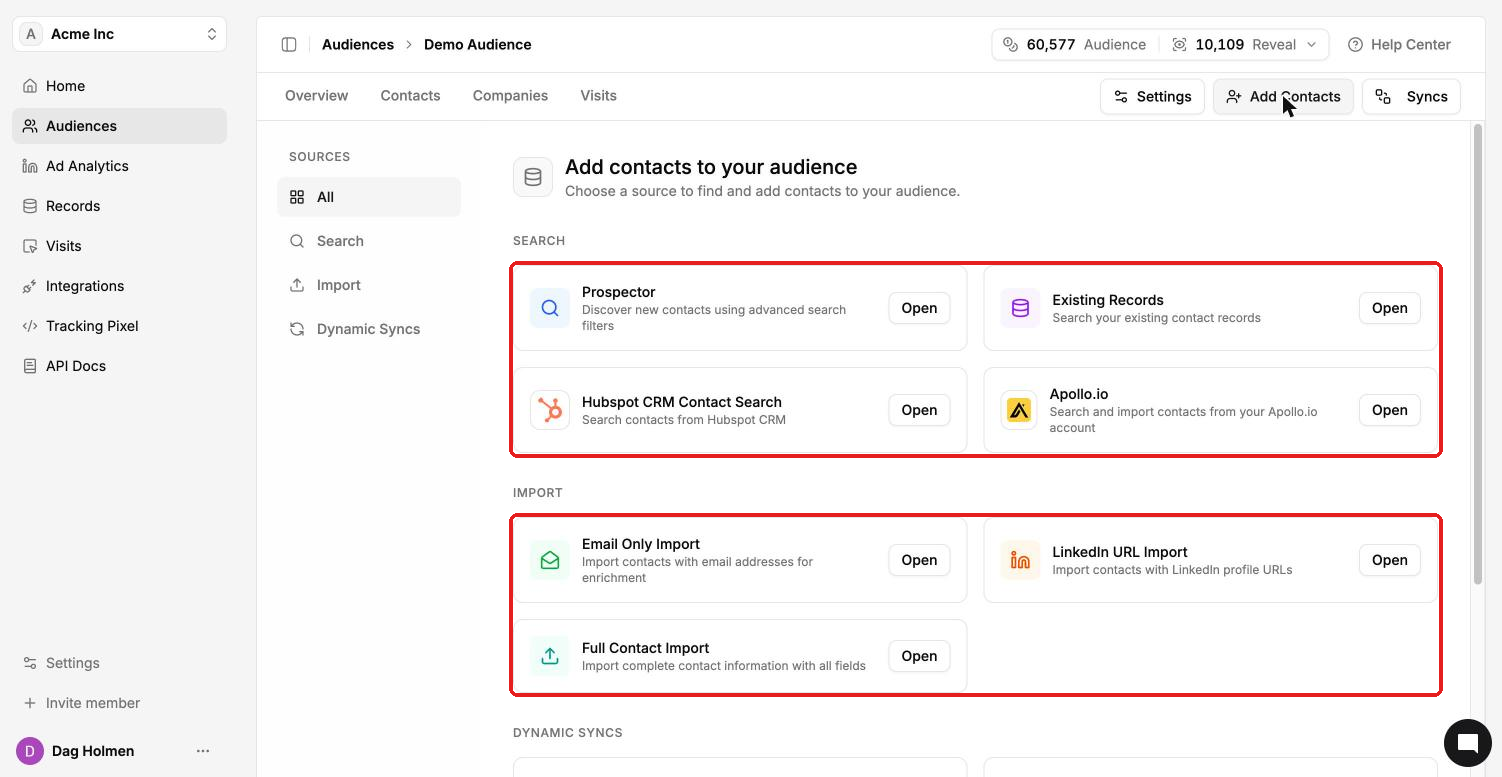
The left menu filters the sources: All, Search, Import and Dynamic Syncs. Click Open on a source to start.
Search
Prospector: filter our database by job title, seniority, company, industry, location and more. Good when you know who you want but don't have a list.
Existing Records: pick contacts already in your account and add them to this audience.
HubSpot CRM Contact Search: search your HubSpot contacts. Salesforce shows up here too when it's connected.
Apollo.io: search the contacts in your Apollo account and add them.
Import
Upload a CSV of up to 20,000 rows per file.
LinkedIn URL Import: the best identifier. Most people only need this one.
Email Only Import: work emails. Works well too.
Full Contact Import: LinkedIn URL plus name, job title and company. Gives the best match rate.
Dynamic Syncs
Website Visits: adds identified visitors from other audiences into this one as they visit your site.
HubSpot CRM Dynamic Audience (and Salesforce when connected): keeps the audience in line with a CRM filter on a daily, weekly or monthly schedule.
What it costs
Searching is free in every source. You use 1 Audience credit for each new contact added to an audience, whichever source it comes from. If a contact already exists in your account, the credit is refunded straight away.