
Password, sign-in and two-factor authentication
All your sign-in settings live under Settings → Security.
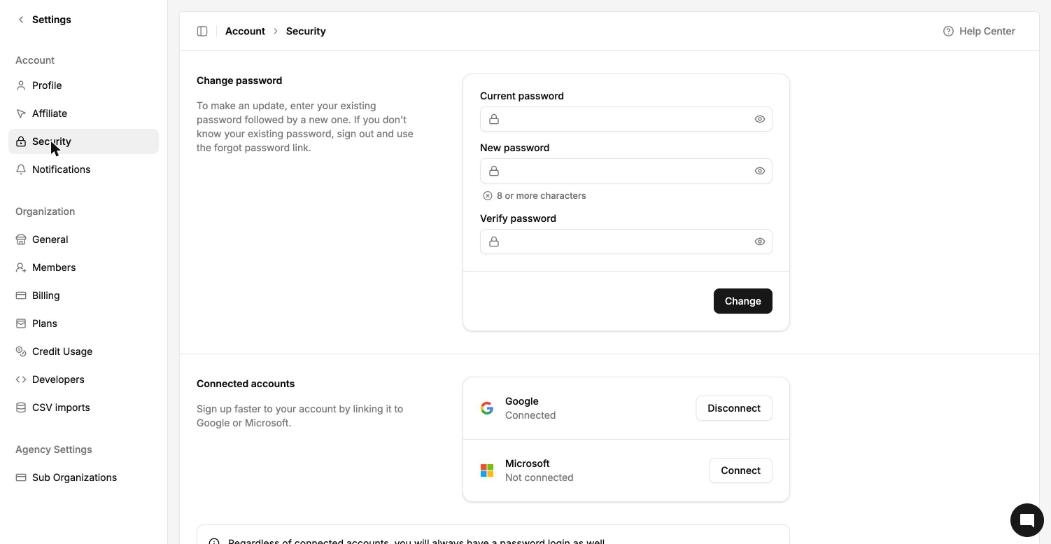
Change your password
Go to Settings → Security.
Enter your Current password.
Enter a New password of 8 or more characters, then type it again in Verify password.
Click Change.
Don't know your current password? Sign out and use the forgot password link on the sign-in page.
Sign in with Google or Microsoft
Under Connected accounts, click Connect next to Google or Microsoft to link that account. Click Disconnect to remove it.
You always keep a password login as well, even with a connected account.
Two-factor authentication
Turn on multi-factor authentication on the same page to require a code from an authenticator app when you sign in.
Sessions
The Security page also lists your active sessions. Sign out other sessions if you've signed in on a device you no longer use.