
Sending website visits to HubSpot or Salesforce
Sync to CRM sends the website visits ContactLevel identifies to your CRM contacts. Your sales team sees visit counts, the last visit date and a note for each visit right in HubSpot or Salesforce. The steps below use HubSpot. Salesforce works the same way.
You need your CRM connected first.
Set it up
Go to Integrations → Connections, open the row menu next to Hubspot CRM and click View details.
Under Sync Configuration, click Sync to CRM.
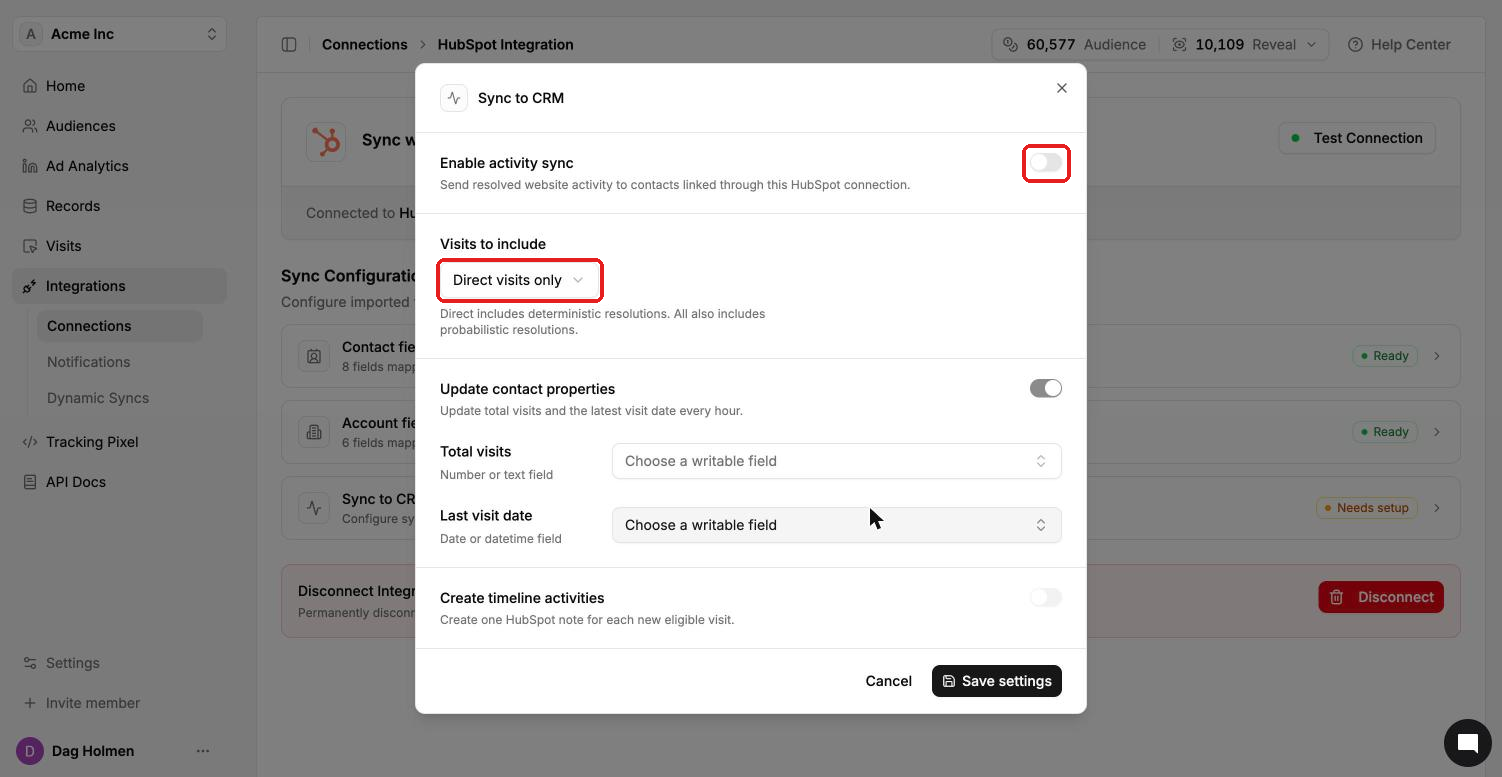
Turn on Enable activity sync.
Under Visits to include, choose Direct visits only or All.
To keep visit counts on each contact, turn on Update contact properties, then pick a writable field for Total visits (number or text) and Last visit date (date or datetime).
To log each visit, turn on Create timeline activities.
Click Save settings.
What each setting does
Visits to include
Direct visits only sends deterministic matches, where we know exactly who visited. All adds probabilistic matches, where the visitor is very likely one of a few people.
Update contact properties
Writes total visits and the latest visit date to the fields you chose. These update every hour.
Create timeline activities
Creates one HubSpot note for each new eligible visit, so it shows on the contact's timeline.
Visitors who aren't in your CRM yet
Identified visitors who aren't in HubSpot yet are created as new HubSpot contacts.