
Finding contacts with Prospector
Prospector lets you find people by role, company and location, then add the ones you want to an audience. It replaces the old Contact Search. Searching is free; you only use credits for contacts you add.
Search and add contacts
Open the audience you want to fill and click Add Contacts.
Under Search, click Open on Prospector.
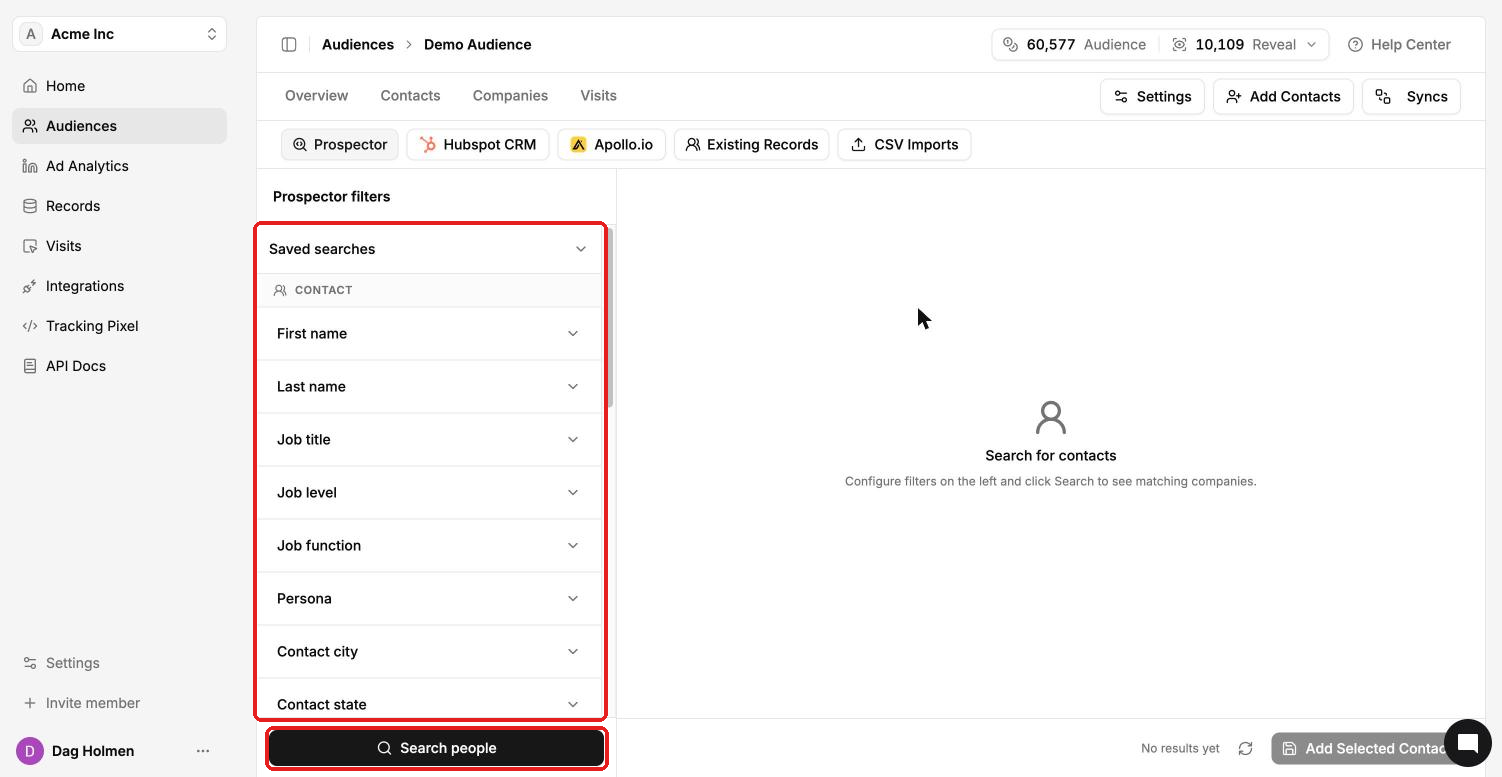
Set your filters in the Prospector filters panel on the left.
Click Search people.
Select the people you want in the results.
Click Add Selected Contacts.
Each new contact added uses 1 Audience credit. Contacts that already exist in your account are refunded right away.
Available filters
Contact
First name, Last name
Job title, Job level, Job function
Persona
Contact city, Contact state, Contact country
A Persona bundles related job functions and titles into one filter. Think of it as "people who do this kind of work", so you don't have to list every title yourself.
Company
Company name, Company LinkedIn URL, Domain
Employee count, Revenue range
Headquarters city, state and country
Industry, Technologies
Company Department Roles, Company Department Open Roles
Website Traffic
Saved searches
Use Saved searches at the top of the filter panel to reuse a set of filters later.
Tips
Start with two or three filters, check the results, then narrow down.
Job function or Persona plus Employee count and Industry is a solid starting point for most B2B audiences.
Check the platform minimums before you sync. LinkedIn, for example, needs at least 300 matched members before an audience serves.
The tab bar at the top also lets you switch to Hubspot CRM, Apollo.io, Existing Records or CSV Imports without leaving the page.